
The E-Learning Toolkit provides a selection of platforms and tools that have been thoughtfully reviewed by our team to support inclusive, effective, and ethical E-learning.
What is Padlet?
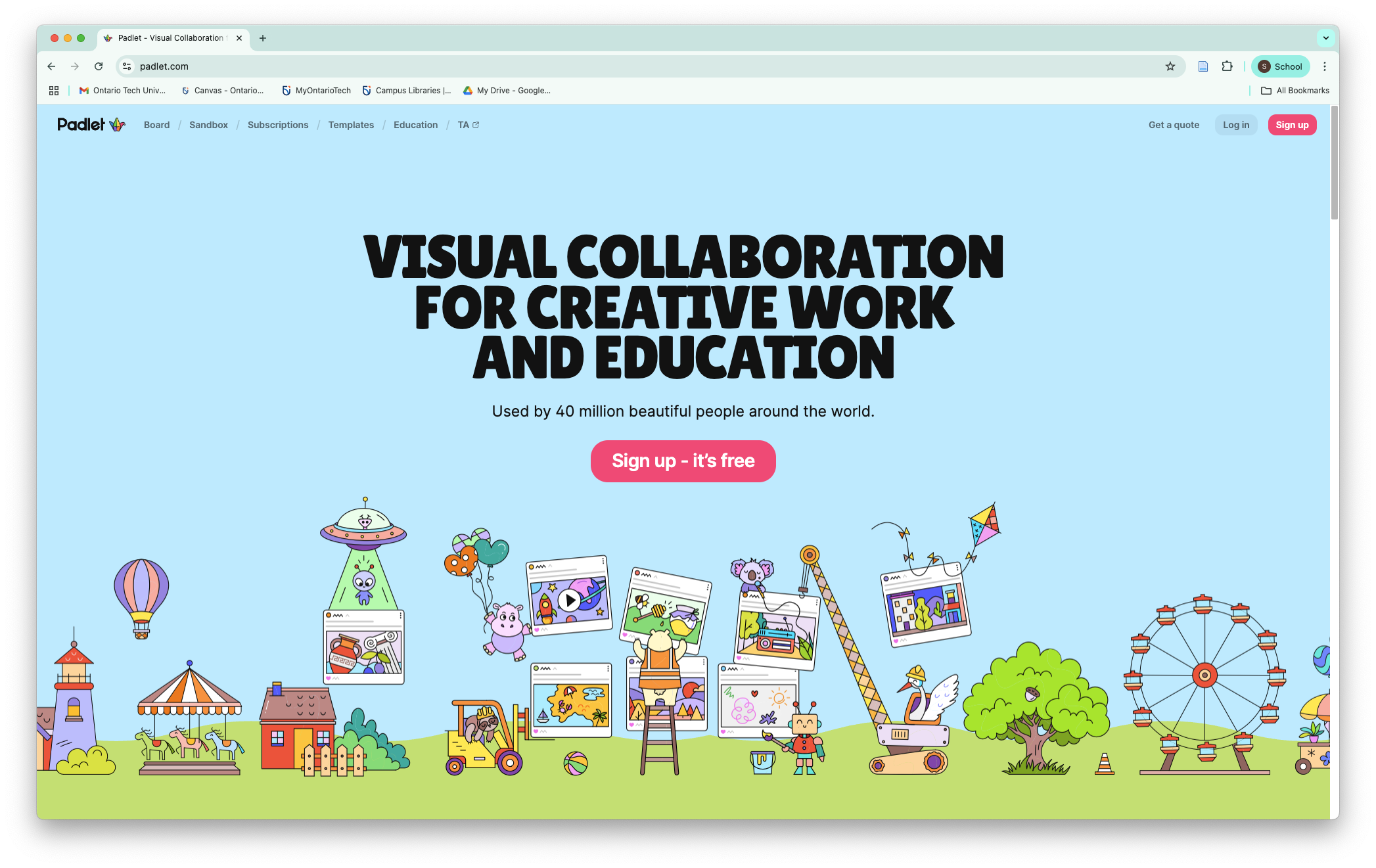
Padlet is a visual collaboration platform, that can be considered as a digital board where learners and educators can post, organize, and share content. It is an interactive tool for collecting ideas, sharing resources, engaging learners, and supporting both individual reflection and group collaboration. Learners can post text, images, audio, video, documents, and links, create timelines, maps, galleries, and even turn posts into slideshows.
What Can Padlet Do?
Padlet supports both individual reflection and group collaboration.
Learners can:
Post text, images, audio, video, documents, and links
Create timelines, maps, galleries, and even slide decks
Engage in live or asynchronous activities'
Educators can:
Facilitate feedback, assess contributions, and promote dialogue
Customize boards for accessibility and comfort (e.g., allow anonymous posts for anxious learners)
Use it flexibly across subjects, grade levels, and learning contexts
Use it to facilitate brainstorms, reflections, group work, or resource sharing.

How does Padlet support educators and learners?
Padlet offers a balance of flexibility, usability, and inclusivity:
It's user-friendly interface means even beginners can participate with minimal training
Learners can post anonymously or with their name, helping reduce anxiety
It’s available in a free version, making it accessible to a wider range of learners regardless of financial background
It works across devices (phones, tablets, and desktops)
Padlet Considerations
Benefits
Beginner-friendly and easy to use (Drag and drop interface)
Supports anonymous or named participation
Offers a free version for educators and learners
Learners can post text, audio, video, images, documents, etc.
Encourages creativity and active learning
Supports real-time and asynchronous interaction
Offers privacy controls for safer learning environments
Learning library
Challenges
Requires stable internet connection (may not be ideal in low-bandwidth settings)
New users may need some orientation to fully explore features
The free version has a limited number of boards
Ethical Implications
Collects only basic user information to support platform use
No third-party data sharing or selling
Complies with FERPA, COPPA, and is certified under EU-US Data Privacy Framework
Transparent privacy policy
Accessibility & Inclusion
Compatible with screen readers, keyboard navigation, and many assistive technologies
Works across most devices (phones, tablets, computers)
Features like anonymous posting promote participation among learners who may otherwise feel anxious or marginalized
Getting Started with Padlet
Watch a Padlet video on how to sign up and setup a Padlet, or review the how to instructions below.
Signing Up for Padlet
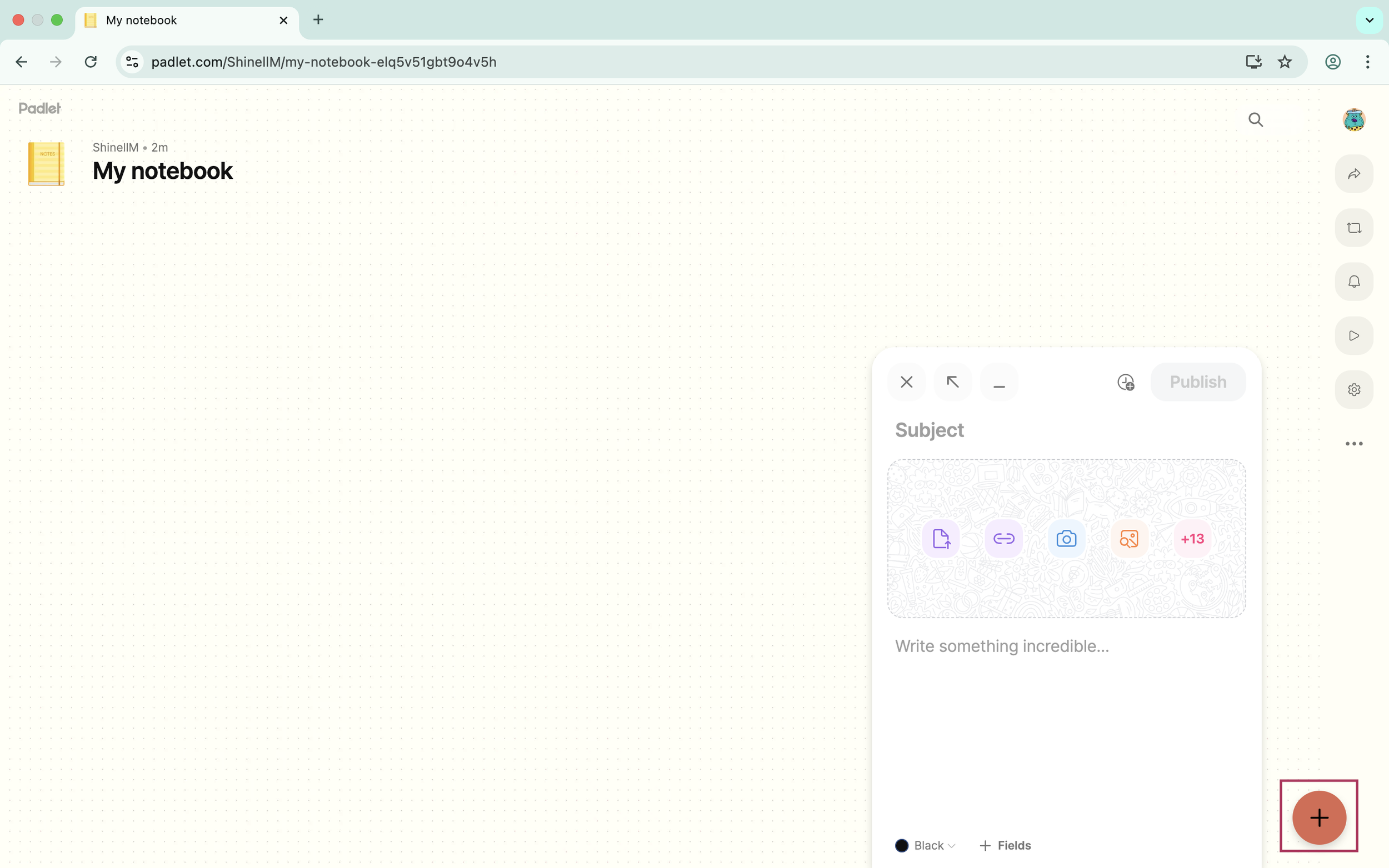
7. Click the + button or double-click anywhere on the screen to begin adding content
Add text, images, videos, links, voice notes, and more
Use it for brainstorms, reflections, group work, or resource sharing
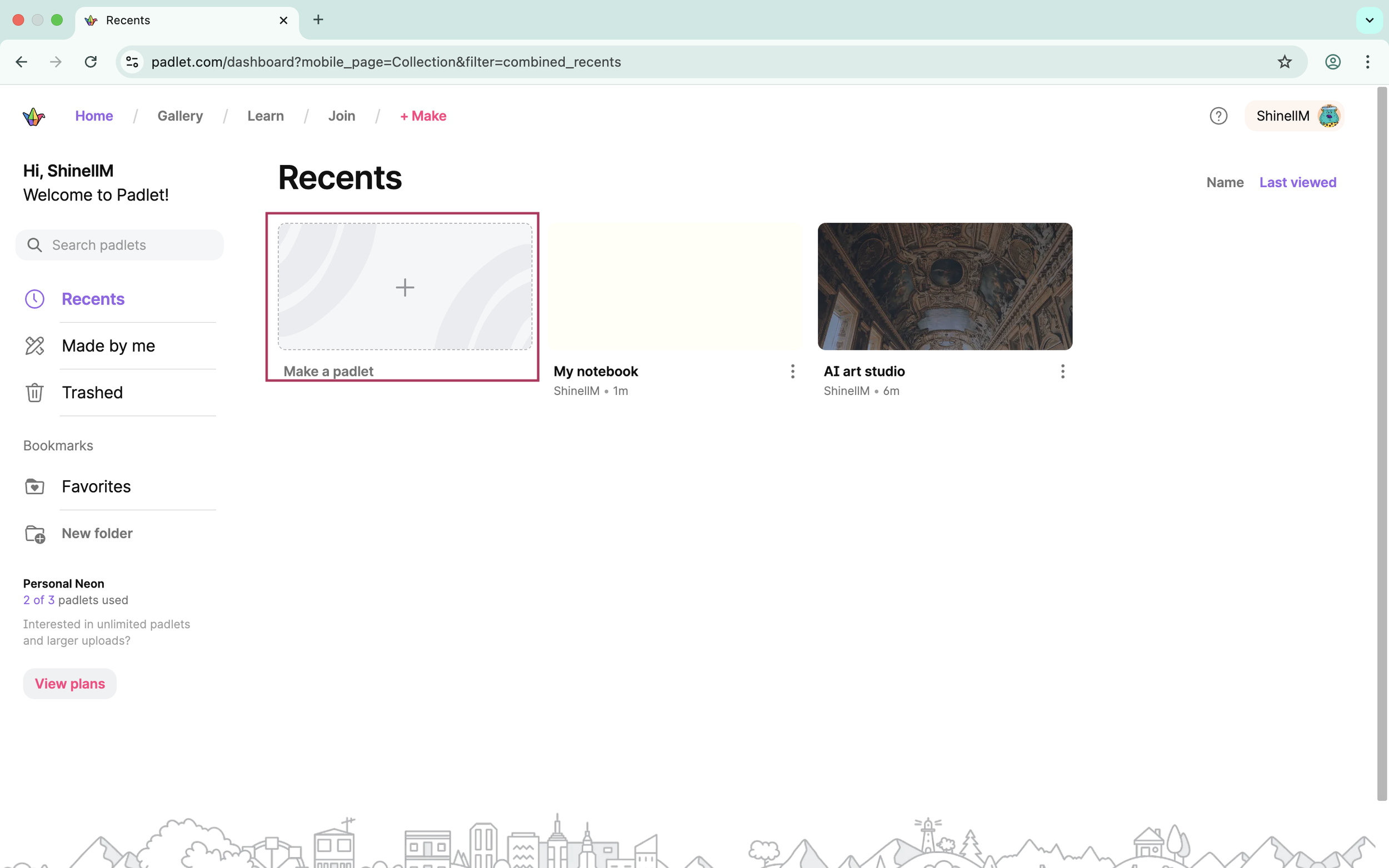
1. Go to www.padlet.com
2. Click Sign Up
4. Select a Plan
Creating a Padlet
3. Select your Padlet Setup
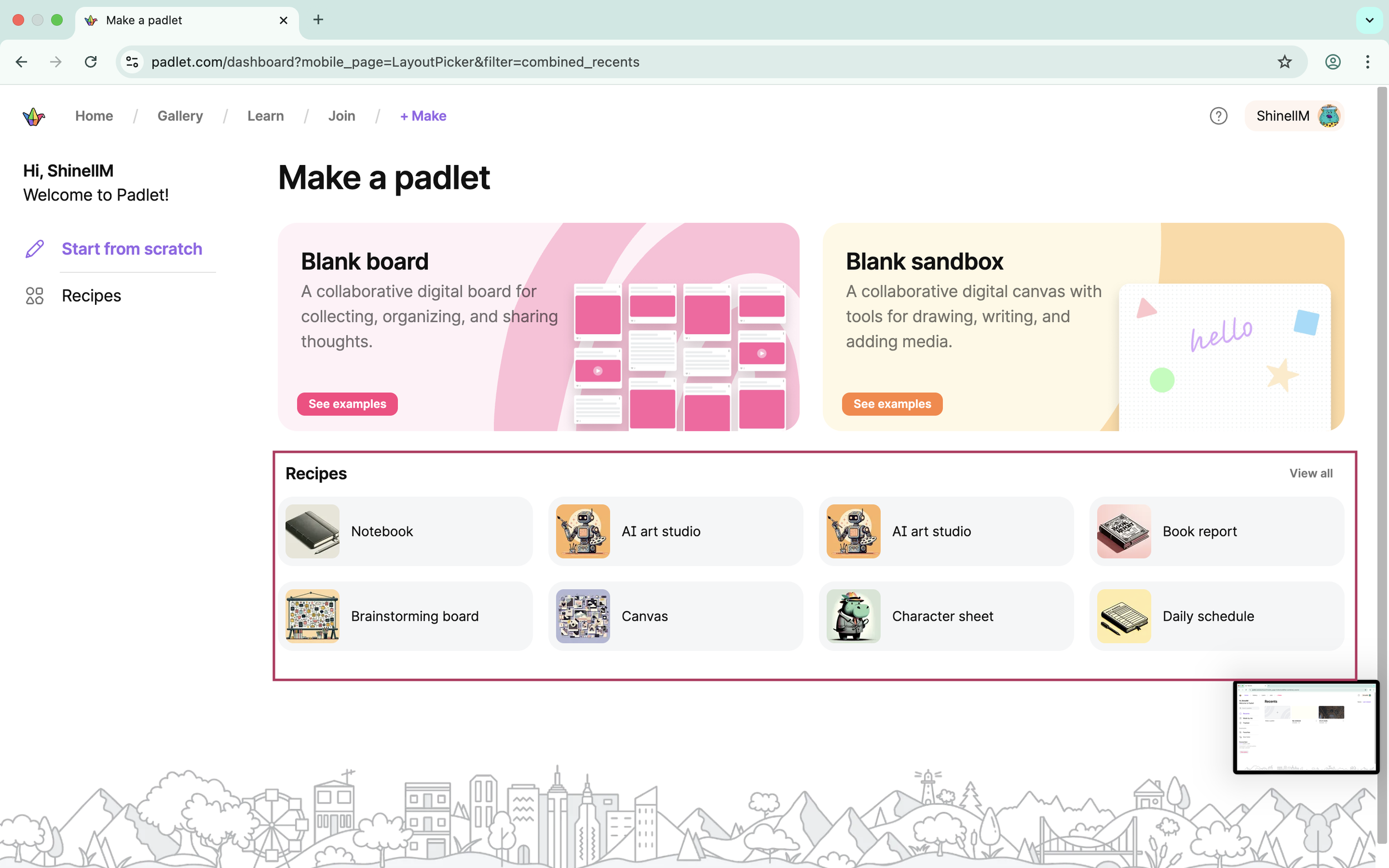
2. Choose a format (e.g., notebook, book report, canvas)
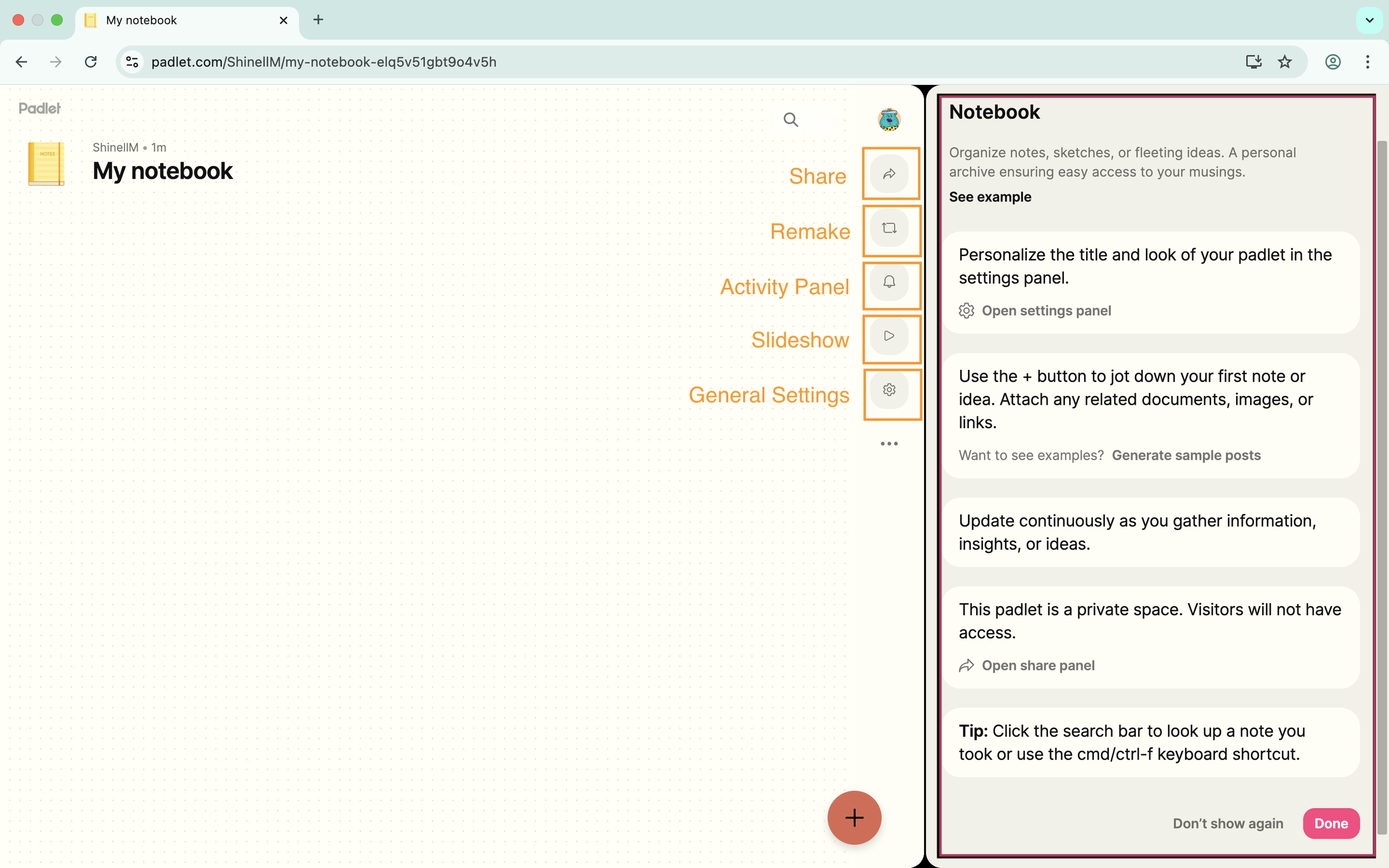
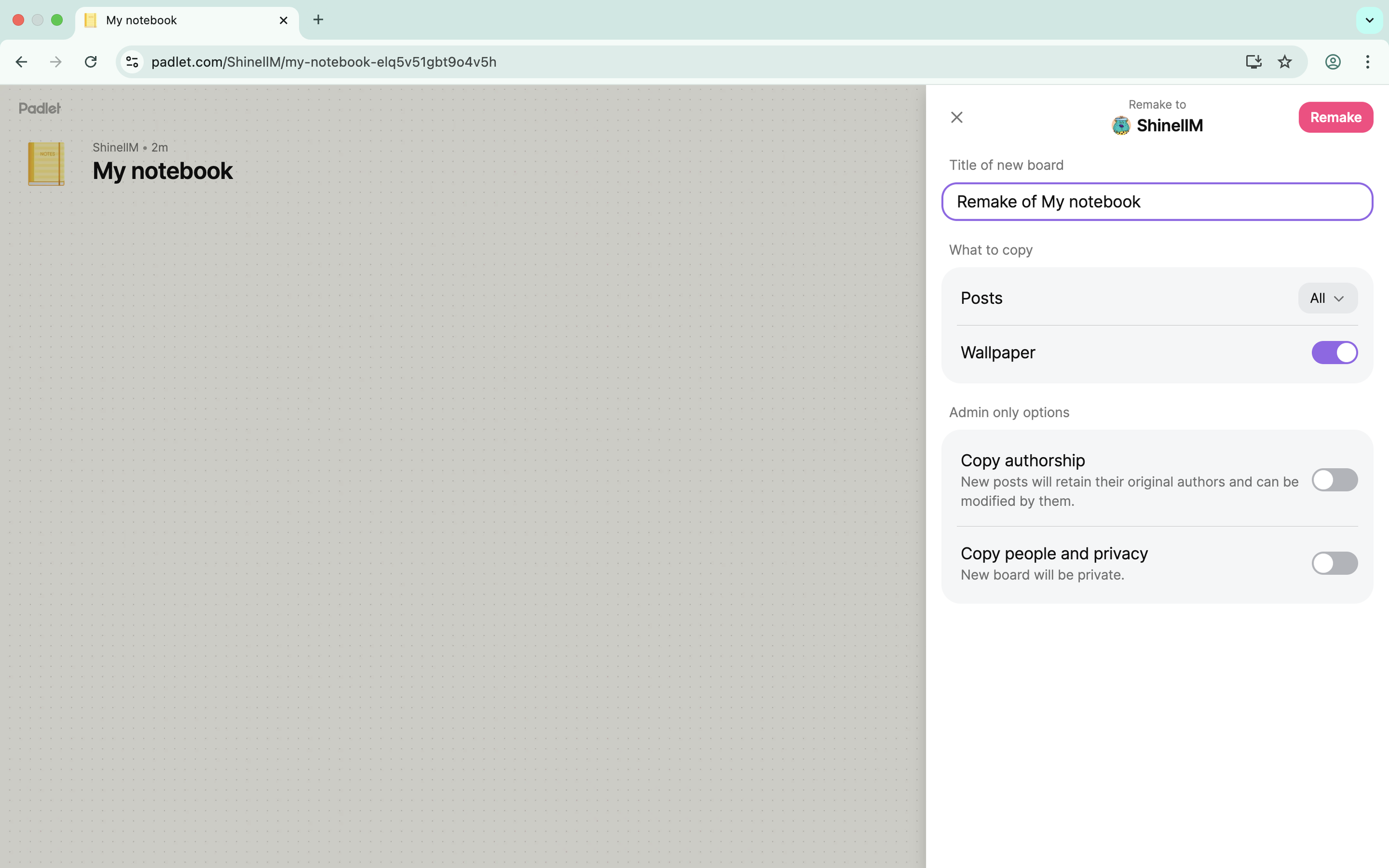
4. Navigate to the highlighted buttons shown in step 3 and click Remake
Actions:
The Remake button enables you to: rename your padlet, toggle your wallpaper on or off, adjust your post, privacy, and authorship settings
Once done, click Remake
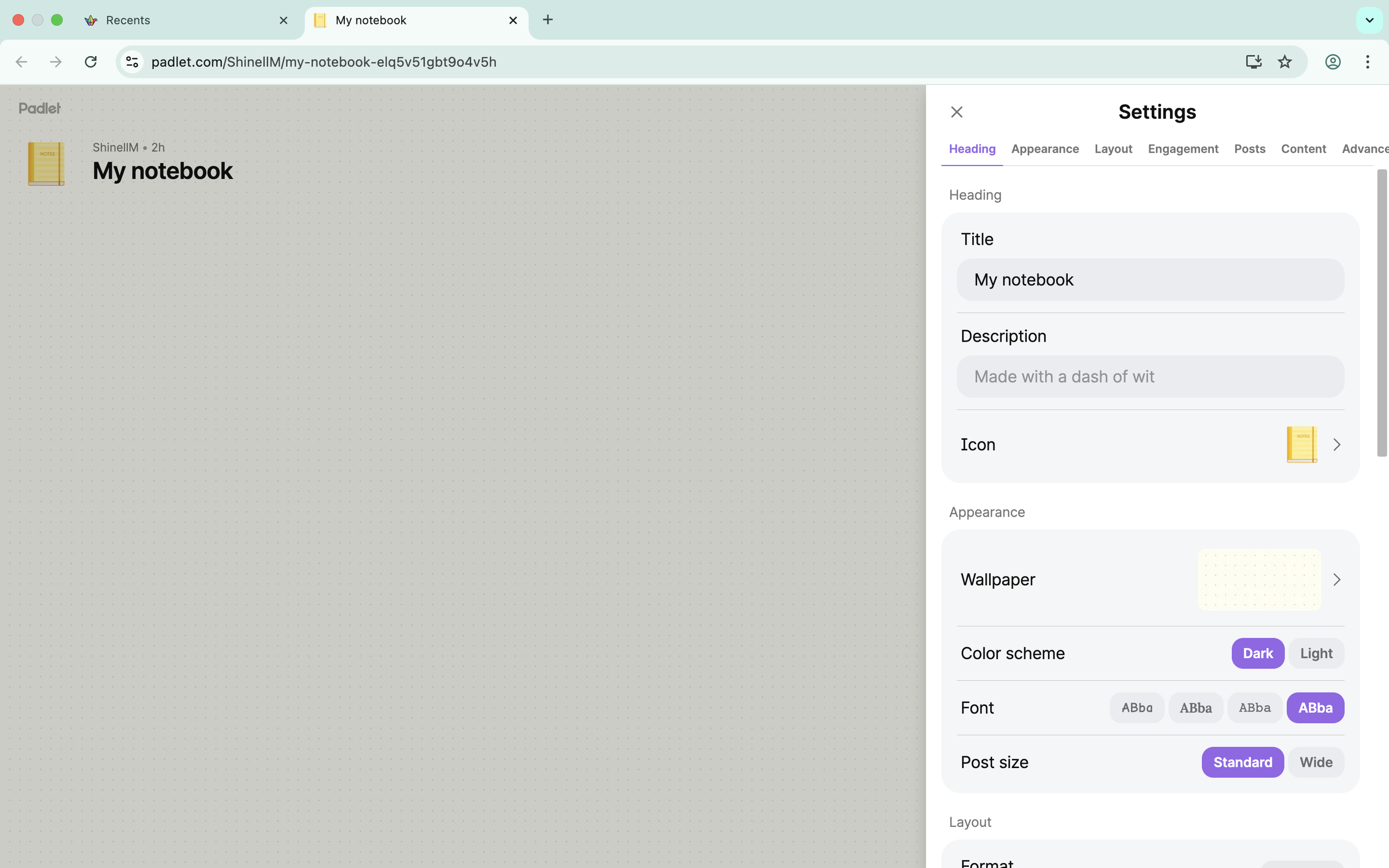
6. Optionally, you can navigate to the highlighted buttons shown in step 3 and click Settings
Actions:
Customize your padlet as you like, including: renaming the board, adding a short description, changing the icon, customizing the wallpaper settings, as well as adjusting the layout, engagement, post, and content settings
1. From the Homepage, select Make a Padlet to create a new board
3. After reviewing the chosen padlet format guide, click Done
The outlined orange buttons found on the right of the screen (Share, Remake, and general settings) will be used in steps 4, 5 and 6
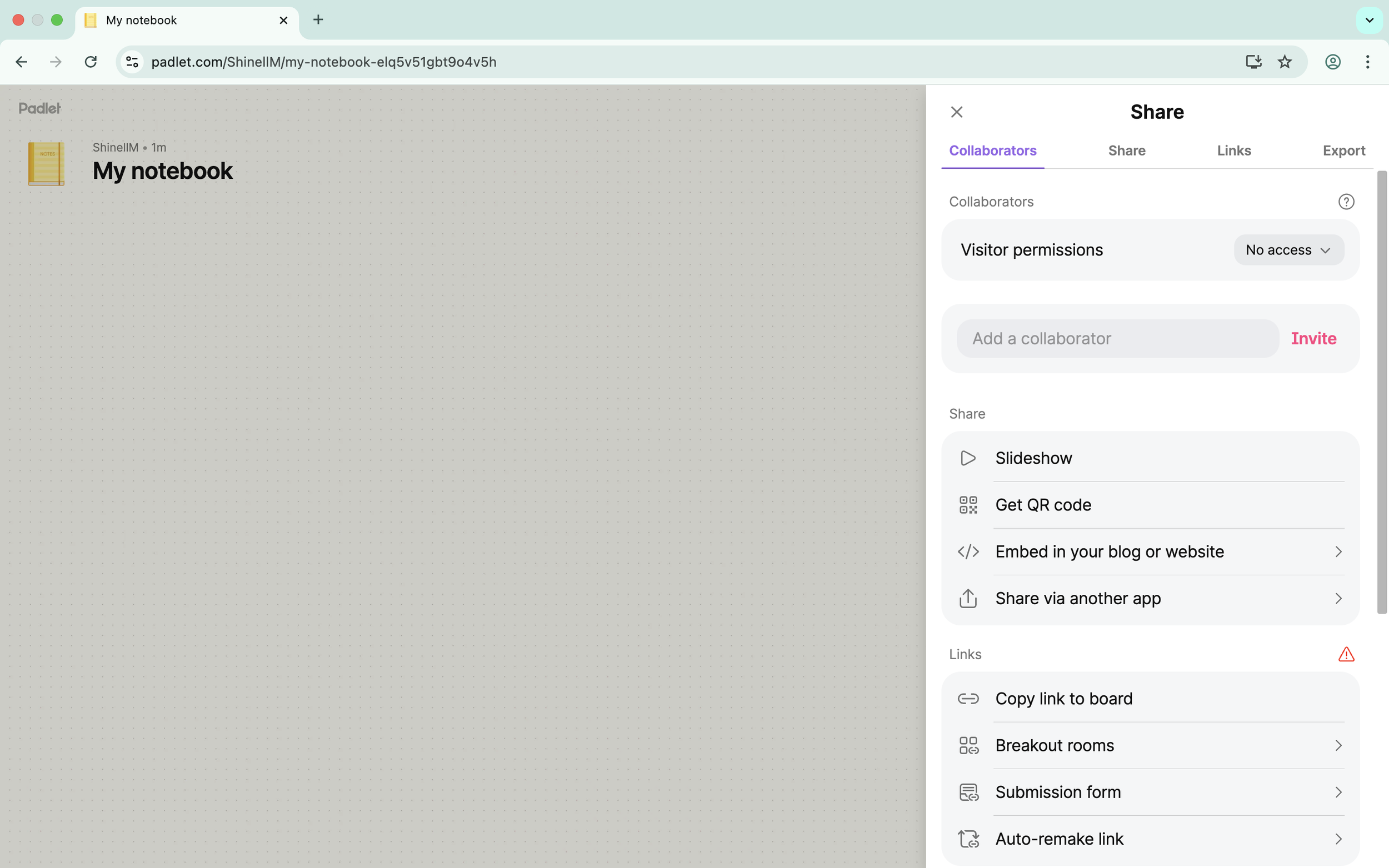
5. Navigate to the highlighted buttons shown in step 3 and click Share
Actions:
The share button enables you to: Add collaborators, adjust visitor permissions, share your padlet using a link or QR code, and export or print your padlet
References
BGPS EdTech. (2022, May 12). How to Create & Set Up a Padlet. [Video]. YouTube. https://youtu.be/Z1dIzsh4XI0
Privacy Policy. Padlet legal. (2025, May 21). https://legal.padlet.com/privacy#:~:text=This%20Policy%20describes%20how%20we,providing%20them%20with%20personal%20information